The most telling line in Engadget's new guide to using an Android phone as a computer speaker isn't one of the steps. It's the explanation for why the obvious approach fails. If you're wondering why "regular Bluetooth pairing doesn't work," Engadget's Isaac Egbon writes, it's because "even the best Android phones are mostly set up to act as the source of a Bluetooth connection, not the receiver."
That still leaves a way in. "Yes, you can use your Android phone as a speaker for your computer, even a cheap phone," the guide, published on November 15, says. The catch is that "you'll have to install an app on both your PC and your phone." Engadget calls the setup "a good temporary fix if your computer's speakers developed an issue" and presents it as "one of several ways to reuse your old Android phone instead of forgetting it in a drawer."
We couldn't check AudioRelay's own documentation directly, so everything below is as Engadget reports it.
Going around Bluetooth
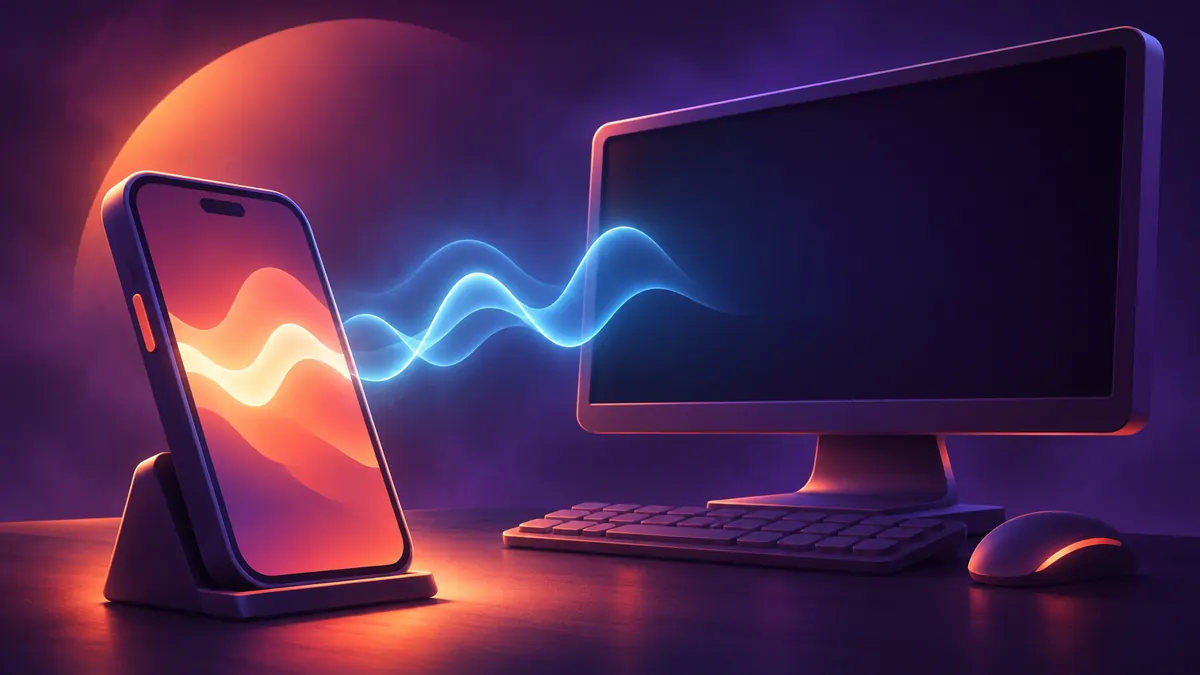
The guide uses an app called AudioRelay, which Engadget says works "by streaming the audio from your PC to your Android phone over your Wi-Fi network, not Bluetooth." The outlet says AudioRelay runs on Windows, Mac and Linux, and notes that "there are other apps available."
The setup, by platform
On Windows and Linux, Engadget says, running and connecting AudioRelay "can be as simple as installing and opening the app" on the phone and the PC. Both devices need to be on the same Wi-Fi network. You then tap your computer's name under the Server section on the phone, and the phone should appear under Connections on the PC. From there, any audio you play on the PC "it'll output on your Android phone's speakers." If the default audio device on Linux stays silent, the guide says to pick the one starting with "Monitor of" in the Server section. To stop streaming, you press the Stop button in the Android app.
The Mac takes more work. Engadget says macOS users need "a virtual audio device like BlackHole (it's free) because macOS doesn't let apps like AudioRelay capture system audio directly." After that, you select BlackHole in AudioRelay's Server section and set it as the sound output in Audio MIDI Setup.
Engadget also flags a default setting that could catch you out: AudioRelay "pauses audio when another app on your Android phone uses the speakers." To change that, open the app while connected, go to the Player tab, scroll down to Player settings, tap Exclusive audio and pick one of the Deactivated options.
Reducing lag
A good part of Engadget's guide is about latency. The outlet says laggy and choppy audio "can ruin the experience," and that both problems usually come down to the buffer: "A smaller buffer size reduces audio delay but leads to more choppy audio, while a larger buffer size smooths out the sound at the cost of more delay." The buffer exists, Engadget says, because "the network doesn't deliver audio at a steady pace," but the phone's speaker needs audio to arrive steadily, so the buffer "holds audio to cover up for network hiccups."
Engadget offers four fixes. It calls going wired "the best fix" and a lower buffer setting the fallback "if that doesn't work for you," then adds two network tips:
- Use a cable. Engadget says USB tethering gives "a more stable connection." Connect the phone by USB, open AudioRelay, scroll to USB tethering, tap Settings and turn it on. Then tap your computer's name under the Server section.
- Lower the buffer. In the Android app, go to Player settings > Buffer amount > Low buffer. Engadget suggests Medium "for a balance."
- Move to 5GHz. Engadget says audio streaming "performs better with devices on a 5GHz connection than on a 2.4GHz one," so if your router supports that band, connect both devices to it.
- Turn off Bluetooth. It "uses the same 2.4GHz band as Wi-Fi and the two can interfere with each other."
The paywall
According to Engadget, the free version of AudioRelay shows ads. A Premium tier "costs about $1 monthly, with yearly and lifetime options available," and the outlet says it removes ads and "unlocks unlimited connection time." Engadget doesn't spell out what connection limits the free version has, or give the price of the yearly and lifetime options. Premium also adds custom buffer settings, uncompressed audio and streaming to several devices.
Mason's take: The Bluetooth detail is the one I'd focus on, because it says something about how phones are positioned. If even the best Android phones are mostly set up as the source of a Bluetooth connection, as Engadget puts it, then my reading is that the phone is treated as the hub that sends audio out, not as an accessory that takes it in. Engadget doesn't make that argument; it's my interpretation. There's also a small irony in a guide that starts by explaining why Bluetooth can't do the job and ends by telling you to switch it off. The practical result is that giving an old phone a second life as a speaker falls to a third-party app, a Wi-Fi workaround and, for unlimited connection time, a paid tier. I don't expect that to change while the phone is treated as the center of everything else you own. So I'd treat AudioRelay as exactly what Engadget calls it, a temporary fix. Try the free tier over a USB cable first, and only look at the lifetime option if the old phone is staying on your desk for good.
Reporting notes